MT Transfer: Move iPhone Photos to Your Computer over USB
Use MT Transfer to move iPhone photos and videos — even hidden items and albums — to your Mac or PC over USB, without iTunes. A complete feature guide.
 Milad Mostafaei
10 min read
Milad Mostafaei
10 min read
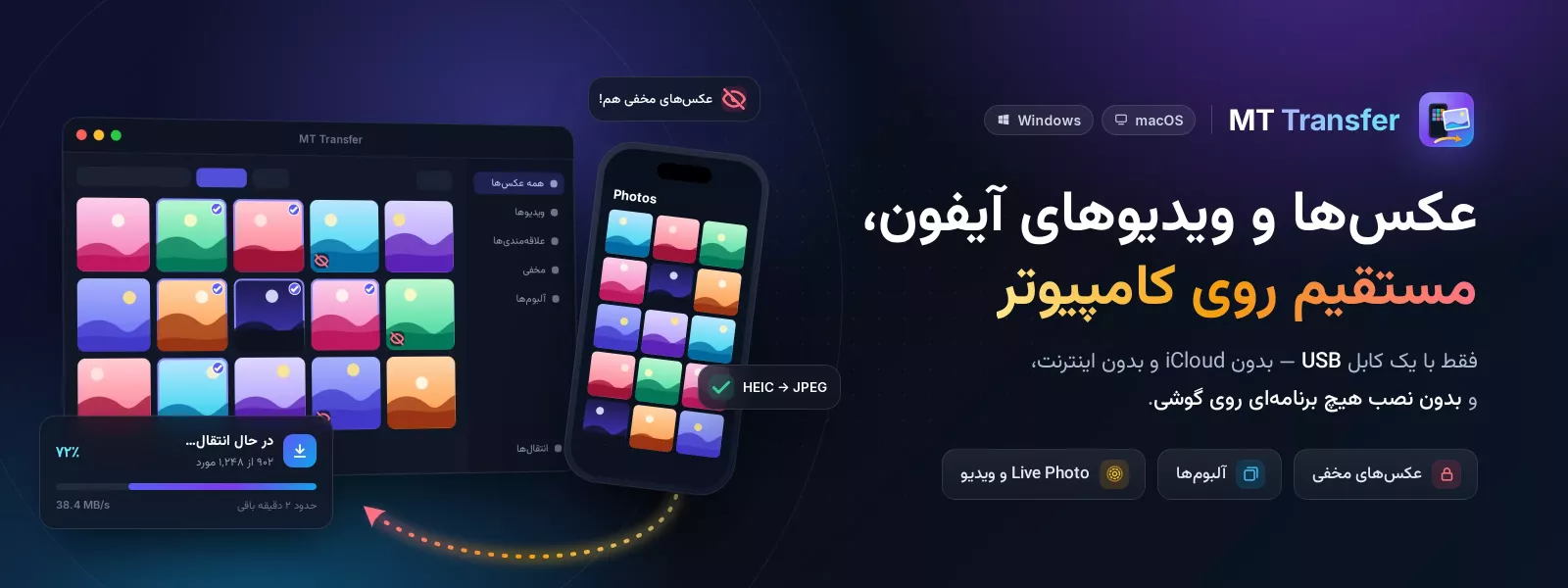
Table of contents
- What is MT Transfer and why do you need it?
- USB transfer, without iTunes and without installing anything on the phone
- Access hidden photos, favorites and albums
- Smart library browsing: filters, search, sorting and preview
- Powerful filters and search
- Sorting and grouping by date
- Multi-select and full preview
- A professional transfer queue with speed, conversion and auto-delete
- Live speed, progress and time remaining
- Keep folder structure and convert HEIC to JPEG
- Duplicate handling and delete after transfer
- Delete photos directly from your iPhone
- Bilingual experience, themes and full settings
- Persian and English, light and dark themes
- Keyboard and mouse shortcuts
- Flexible settings
- Compatibility and getting started in minutes
- MT Transfer feature summary
- Language and region availability
- Frequently asked questions
- Do I need to install anything on my iPhone?
- Can hidden photos be transferred too?
- Are my photos uploaded anywhere?
- What do I need on Windows?
- Can I convert HEIC to JPEG?
- Conclusion
Transferring photos from iPhone to your computer has never been easier than with MT Transfer. Just connect your iPhone to your Mac or PC with a USB cable and move all of your photos and videos — including hidden items and albums — to your computer in a few clicks. If you have been fighting with iTunes, a full iCloud account, or complicated software, MT Transfer is the tool you have been looking for: fast, private and genuinely simple.
In this complete guide we walk through every feature of MT Transfer, from the smallest detail to the biggest, so you can see why it is the best way to transfer files from iPhone to PC or Mac.
What is MT Transfer and why do you need it?
MT Transfer is a desktop app for Mac and Windows built specifically to transfer photos and videos from iPhone to a computer. Unlike traditional methods, nothing is installed on your phone; the connection runs entirely over USB using Apple's official device layer. That means your photos never leave your hands and are never uploaded to any server.
The result is a private, secure experience: family photos, personal videos and your memories are copied straight from your phone to your own computer — no internet, no account, no middleman.
USB transfer, without iTunes and without installing anything on the phone
At the heart of MT Transfer is fast, reliable cable transfer. All you have to do is connect your iPhone, tap "Trust" on the phone, and your photo library opens instantly. No more confusing iTunes syncing or fear of wiping your data.
This is perfect for anyone who wants to transfer photos from iPhone to computer without iTunes. The app reads your device's entire DCIM library and shows you photos, videos and even Live Photos.
Access hidden photos, favorites and albums
This is the biggest advantage that sets MT Transfer apart. Most tools only show the raw camera folder, but MT Transfer can detect and display your Hidden photos, Favorites and all of your Albums exactly as you see them in the iPhone Photos app.
How? Hidden photos live in the same folder as everything else, and the only way to tell them apart is to read the iPhone's photo database. MT Transfer does this intelligently and only once, to unlock albums, favorites and hidden detection. If your device backup is encrypted, the app uses your backup password to temporarily disable encryption, read the data, and then re-enable it.
Smart library browsing: filters, search, sorting and preview
MT Transfer is not just a simple transfer tool; it is a full, professional browser for your iPhone photo library.
Powerful filters and search
You can filter photos by type (photo, video, Live), favorites only, hidden only, or by album. A search box lets you find files by name. There is also a date filter: today, last 7 days, last 30 days, this year, or a custom range.
Sorting and grouping by date
Sort photos newest first, oldest first, by name or by size. A group-by-date option keeps even a crowded library tidy and easy to scan.
Multi-select and full preview
With click, Cmd-click and Shift-click you can select several photos or a whole range at once. Select all and deselect all are available too. Every file has a full-size preview with all of its metadata: file name, dimensions, creation date, location, size, video duration and the albums it belongs to. iPhone videos (including the HEVC format) play right inside the app with no separate codec to install.
A professional transfer queue with speed, conversion and auto-delete
Once you have picked your photos, the MT Transfer queue takes over and gives you full control.
Live speed, progress and time remaining
During a transfer you see a progress bar, copy speed and an estimated time remaining (ETA). You always know how many of how many files have moved.
Keep folder structure and convert HEIC to JPEG
The app can keep the iPhone folder structure (DCIM/100APPLE). On Mac you can also convert HEIC photos to JPEG during transfer so they open easily on any device or app.
Duplicate handling and delete after transfer
If a file with the same name already exists in the destination, you can choose to overwrite it or skip it (same-name files are saved as "name (1)"). There is also a very handy option: delete from iPhone after a successful transfer — each file is removed from the phone only once it has been safely copied, freeing up your iPhone storage.
Delete photos directly from your iPhone
MT Transfer lets you delete selected photos straight from your iPhone. It does this through the device's camera interface, which means the photos are truly removed from the Photos app, not just from storage. Before deleting, the app gives a clear warning that this cannot be undone and that you should back up the photos first.
Bilingual experience, themes and full settings
MT Transfer is built with attention to detail so it is a pleasure to use.
Persian and English, light and dark themes
The interface is fully bilingual — Persian by default and English. Light and dark themes are supported so it is easy on your eyes in any environment. Dates can even be shown in the Solar Hijri (Jalali) calendar with Persian digits.
Keyboard and mouse shortcuts
For power users, there are keyboard and mouse shortcuts to open the preview, add to the selection, select a range, select all, clear the selection, move between items and toggle the info panel.
Flexible settings
In settings you can set a default destination folder, thumbnail size, whether hidden items show by default, and hardware video acceleration. The thumbnail cache is visible and can be cleared any time.
Compatibility and getting started in minutes
MT Transfer works on Mac and Windows and is compatible with today's iPhones and recent iOS versions, including iOS 26 and iOS 27. To get started, follow these simple steps:
Download MT Transfer from the main site and install it on your Mac or PC.
Connect your iPhone to the computer with a USB cable.
Tap "Trust" on the phone.
Your photo library opens; filter and select your photos.
Choose a destination folder and press transfer.
On Windows you only need to install Apple's free "Apple Devices" app (or iTunes) once; it provides the driver Windows needs to recognize the iPhone. On Mac, the required tools ship with the app and usually nothing else is needed.
MT Transfer feature summary
| Feature | Description |
|---|---|
| USB transfer | Fast and private, nothing installed on the phone |
| Hidden photos & albums | Full detection and display |
| Filter, search & sort | By type, date, name and size |
| HEIC to JPEG | On Mac, during transfer |
| Delete from iPhone | Directly and after transfer |
| Bilingual & Jalali calendar | Persian and English, light/dark theme |
| Platform | Mac and Windows |
Language and region availability
MT Transfer ships with a Persian-first interface (English also included) and can display dates in the Solar Hijri (Jalali) calendar, making it especially comfortable for Persian-speaking users. Because every transfer happens offline over a cable, it needs no cloud service, no foreign account and no fast internet connection — a real advantage for users in regions with limited cloud access or connectivity.
Frequently asked questions
Do I need to install anything on my iPhone?
No. Nothing is installed on the phone. Just connect the iPhone with a cable and tap Trust.
Can hidden photos be transferred too?
Yes. MT Transfer is one of the few tools that detects hidden photos, favorites and albums and lets you transfer them.
Are my photos uploaded anywhere?
No. All transfers happen locally over the cable between your iPhone and your own computer; no data is sent to the internet.
What do I need on Windows?
Only a one-time install of Apple's free "Apple Devices" app (or iTunes), which provides the iPhone detection driver.
Can I convert HEIC to JPEG?
Yes, on Mac this option is available during transfer so your photos open everywhere.
Conclusion
MT Transfer is a complete, fast and secure solution for transferring photos and videos from iPhone to computer on Mac and Windows. From simple cable transfer to hidden photos and albums, a professional transfer queue, format conversion, on-device deletion and a fully Persian interface with the Jalali calendar — all in one app. If you want a reliable iTunes alternative and an easy way to free up your iPhone storage and back up your memories, MT Transfer was built for you. Get it now at milad-tech.com and start moving your photos.
Sources: Official MT Transfer documentation; iOS 27 announcement on Apple Newsroom and MacRumors; Apple Devices download page for Windows.
Comments (0)
No comments yet. Be the first!
Leave a comment